 Google
 Microsoft
 Adobe
Adobe Canva
Canva Kaspersky
Scrivener + OTO
$27.00

$27.00
Sent via customer’s email
12-24hrs
All-in-one Subscription
Scrivener + OTO : The professional standard for authors and content creators to craft complex works.
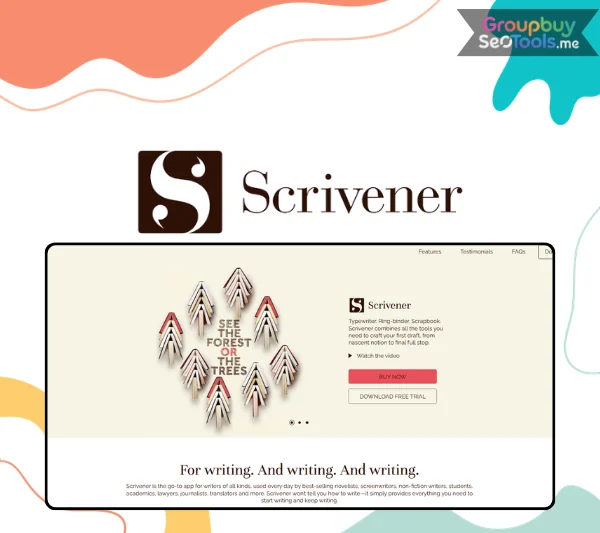
Here is the problem with writing a novel in Microsoft Word: Word was never told you were writing a novel.
It doesn’t know about the 23 named characters, the three-act structure you keep revising, the research PDFs scattered across four folders, or the scene you wrote for chapter twelve that actually belongs in chapter three. It treats your manuscript like a very long memo. You suffer accordingly.
Scrivener was built as the direct answer to this problem — by a writer, for writers, in 2007 — and it remains the standard for serious long-form writing in 2026. One-time purchase. No subscription. $59.99. Here’s everything worth knowing before you buy.
Scrivener is a long-form writing application made by Literature & Latte, a small UK software company. It launched in 2007 when dedicated writing software barely existed as a category, and has built a user base of millions — bestselling novelists, screenwriters, academics, journalists, lawyers, and translators who work on complex, research-heavy, structurally demanding projects daily.
The current version is Scrivener 3, available for macOS, Windows, and iOS. It’s a one-time purchase. No monthly fee. No annual renewal.
Word processors focus on how documents look. Scrivener focuses on how manuscripts get written.
The difference is structural. A word processor gives you one long scrolling document. Scrivener gives you a project — a ring-binder where every scene, chapter, research file, character note, and draft lives together, organized how you need it, accessible from a single sidebar.
You write scenes in any order. You reorganize by dragging. Your research sits one click from the sentence that needs it. When you’re done, a feature called Compile assembles everything and exports it in whatever format publishers, agents, or self-publishing platforms require — formatted correctly, without touching a setting while you draft.
This is the shift writers describe when they say Scrivener changed how they work. Not more features on top of a word processor. A different idea of what the tool should be.
Three panels form the Scrivener workspace:
Three view modes add structural perspective:
Every piece of the project lives in one place. No hunting across folders. No separate research document open in another window. Drag scenes to restructure. Nest chapters under acts. Archive deleted material without deleting it. The Binder makes the architecture of a long project manageable in a way no word processor attempts.
Each document has a title and a synopsis that appear as an index card in Corkboard View. Rearrange the cards, and the manuscript order updates. For writers who plan visually before drafting, this is the physical corkboard digitized and integrated directly with the manuscript.
Open two documents side by side — write a new scene in one pane while referencing an earlier chapter, a research PDF, or an interview transcript in the other. A capability that Word cannot replicate, and one that writers who check for consistency or work from research cite as quietly essential.
Import PDFs, images, web pages, audio, and video directly into the project’s Research folder. Reference material lives alongside the manuscript — viewable in a split pane while writing — with no application switching required.
Before revising a section, take a Snapshot. Scrivener saves a timestamped copy of the current version. Roll back instantly if the revision goes wrong. The entire draft history of every scene lives inside the project — no file proliferation, no naming conventions required.
Set a target for the manuscript and for each writing session. A progress bar updates in real time. Writing history tracks output over time. For writers using daily word goals to maintain momentum, this converts abstract targets into visible progress.
Assign labels and status markers to any document — POV character, timeline thread, revision state, draft status. Labels appear as color in the Binder, making the state of a complex manuscript readable at a glance.
The export engine. When the manuscript is ready, Compile assembles it from component documents and produces the output format required: Word, PDF, ePub, Final Draft, plain text, RTF, and more. Output formatting — fonts, margins, headers, page numbers — can differ entirely from the writing environment. Write in whatever font suits a long session; export in standard manuscript format without reformatting a single paragraph.
Switch any document into screenplay formatting. Scrivener applies industry-standard conventions automatically — scene headings, action, character names, dialogue — and cycles through elements with Tab and Return. Export directly to Final Draft. Writers can move between prose and script within the same project.
Scrivener uses a one-time purchase model. No subscription, no renewal. Minor updates within a major version are always free.
| License | Price |
| macOS Standard | $59.99 |
| Windows Standard | $59.99 |
| Mac + Windows Bundle | $95.98 |
| iOS (App Store) | $23.99 |
| Educational (Mac or Windows) | $50.99 |
| Cross-grade (one desktop to the other) | $37.95 |
All three platforms combined: ~$121.93 — roughly one to two years of most competing subscription writing apps, paid once, owned permanently.
Fully-featured 30-day trial for macOS and Windows. Days count only when the app is open, not calendar days. A genuine month of real use before spending anything.
| Platform | Available | Minimum |
| macOS | ✓ Scrivener 3 | macOS 11+ |
| Windows | ✓ Scrivener 3 | Windows 10+ (64-bit) |
| iOS / iPadOS | ✓ | iOS 11+ |
| Android | ✗ | — |
| Web / Browser | ✗ | — |
| Linux | ✗ (abandoned beta) | — |
Sync: Cross-platform sync works via Dropbox (setup required). iOS also supports iCloud. Everything stores locally — fully offline, no cloud dependency, no server outages affecting your work.
| Scrivener | Microsoft Word | Google Docs | Ulysses | Final Draft | |
| Price | $59.99 one-time | Subscription | Free / subscription | $5.99/month | $249.99 one-time |
| Long-form organization | ✓ Best in class | ✗ | ✗ | Moderate | Script-specific |
| Research integration | ✓ | ✗ | ✗ | ✗ | ✗ |
| Corkboard / outliner | ✓ | ✗ | ✗ | Limited | ✗ |
| Compile / export control | ✓ | Partial | Partial | ✓ | ✓ Script |
| Real-time collaboration | ✗ | ✓ | ✓ Best | ✗ | Limited |
| AI features | ✗ | ✓ | ✓ | ✗ | ✗ |
| Windows support | ✓ | ✓ | ✓ | ✗ | ✓ |
| Mobile (iOS) | ✓ | ✓ | ✓ | ✓ | ✓ |
| Offline | ✓ Full | ✓ | Partial | ✓ | ✓ |
vs Word: Word handles documents; Scrivener handles manuscripts. Different tools solving different problems. Use Word for formatted deliverables; use Scrivener when the project needs structural management a document editor can’t provide.
vs Google Docs: Collaboration and accessibility are Google Docs’ advantages. Manuscript organization is Scrivener’s. Many writers use both — Scrivener for drafting, Google Docs for editorial review.
vs Ulysses: Beautiful, minimal, Markdown-based, Apple-only, subscription. Better interface, shallower organizational system. Choose Ulysses for clean writing on Apple devices; choose Scrivener for Windows support or complex project management.
vs Final Draft: Industry-standard screenwriting with production-level features Scrivener’s script mode doesn’t match. At $249.99, it’s 4x Scrivener’s price. Professional screenwriters on production need Final Draft; screenwriters integrating script work into a broader writing project may find Scrivener sufficient.
Scrivener isn’t competing to be the simplest writing tool, the most beautiful, or the one with the best AI integration. It’s competing to be the most complete writing environment for serious long-form work — and in that category, it has held the position since 2007 without a credible challenger.
The learning curve is real. The interface is dense. The absence of Android and web access is a genuine limitation. These things are true.
Also true: the organizational capability is unmatched at any price. The one-time purchase is a better deal than virtually every subscription alternative over any multi-year horizon. The 30-day trial is long enough to know whether it fits your work. And if November is approaching, the NaNoWriMo discount cuts the price in half.
Writers who use Scrivener seriously rarely leave it. That’s the most honest review any software can receive.
There are no reviews yet.